Launch Your Website Directory

Set up your directory website with a few simple steps.

Last updated on 04 Sept, 2025

1
Click Get Started
Begin your setup by clicking the Get Started button.
2
Name Your Website
Choose a name for your website that can be changed later.
3
Define Target Market
Set your initial target market for the directory.
4
Choose Homepage Look
Select the homepage look that fits your directory.
5
Set Website Details
Configure your website's country, language, and time zone.
6
Complete Setup
Finish the setup by inviting team members and clicking Complete.

1
Click Get Started
Begin your setup by clicking the Get Started button.
2
Name Your Website
Choose a name for your website that can be changed later.
3
Define Target Market
Set your initial target market for the directory.
4
Choose Homepage Look
Select the homepage look that fits your directory.
5
Set Website Details
Configure your website's country, language, and time zone.
6
Complete Setup
Finish the setup by inviting team members and clicking Complete.

Let's Do It Together!

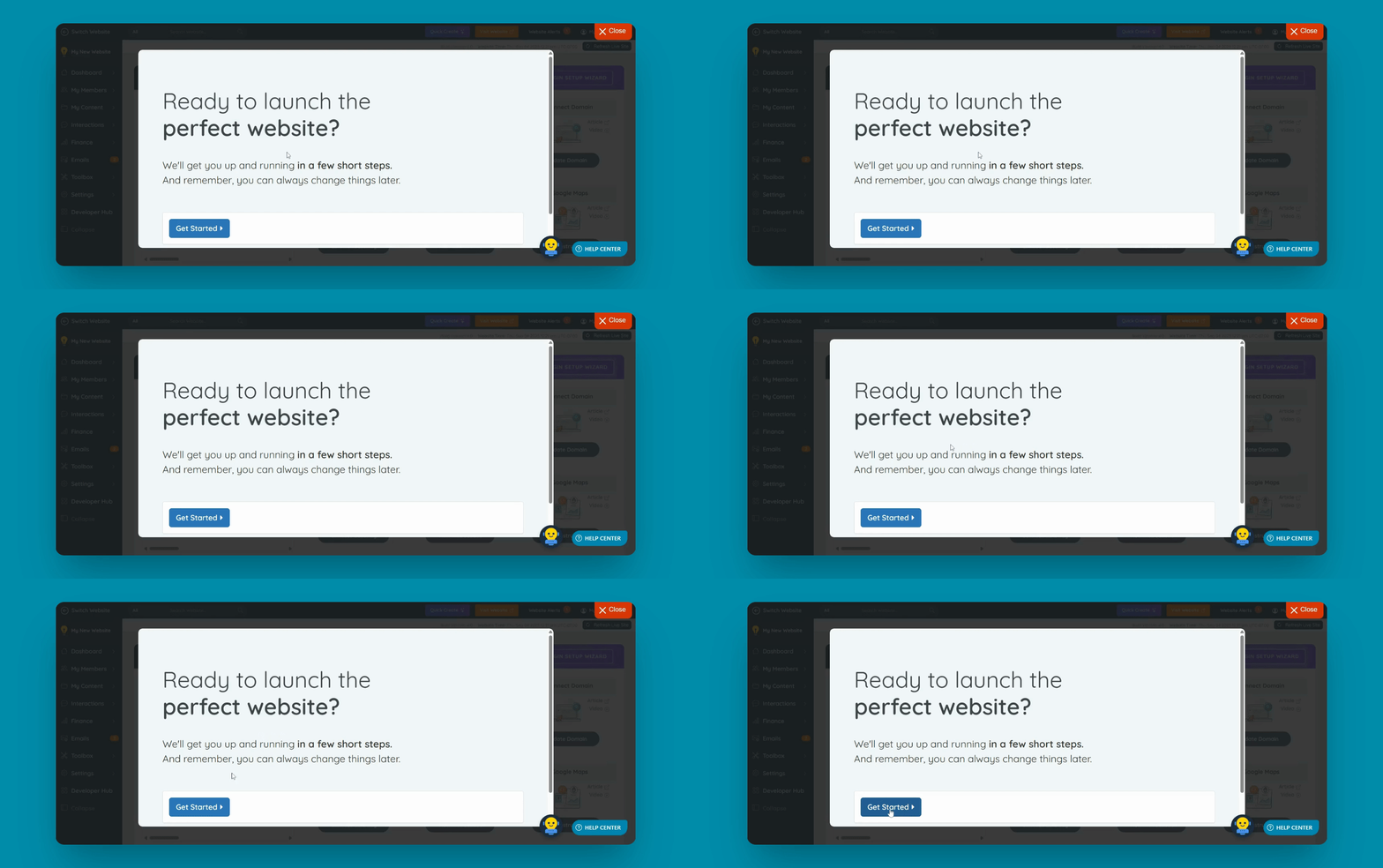
Step 1: Get Started

  1. When the site loads, click the Get Started button.

You will be directed to the initial setup steps.
Snapshot

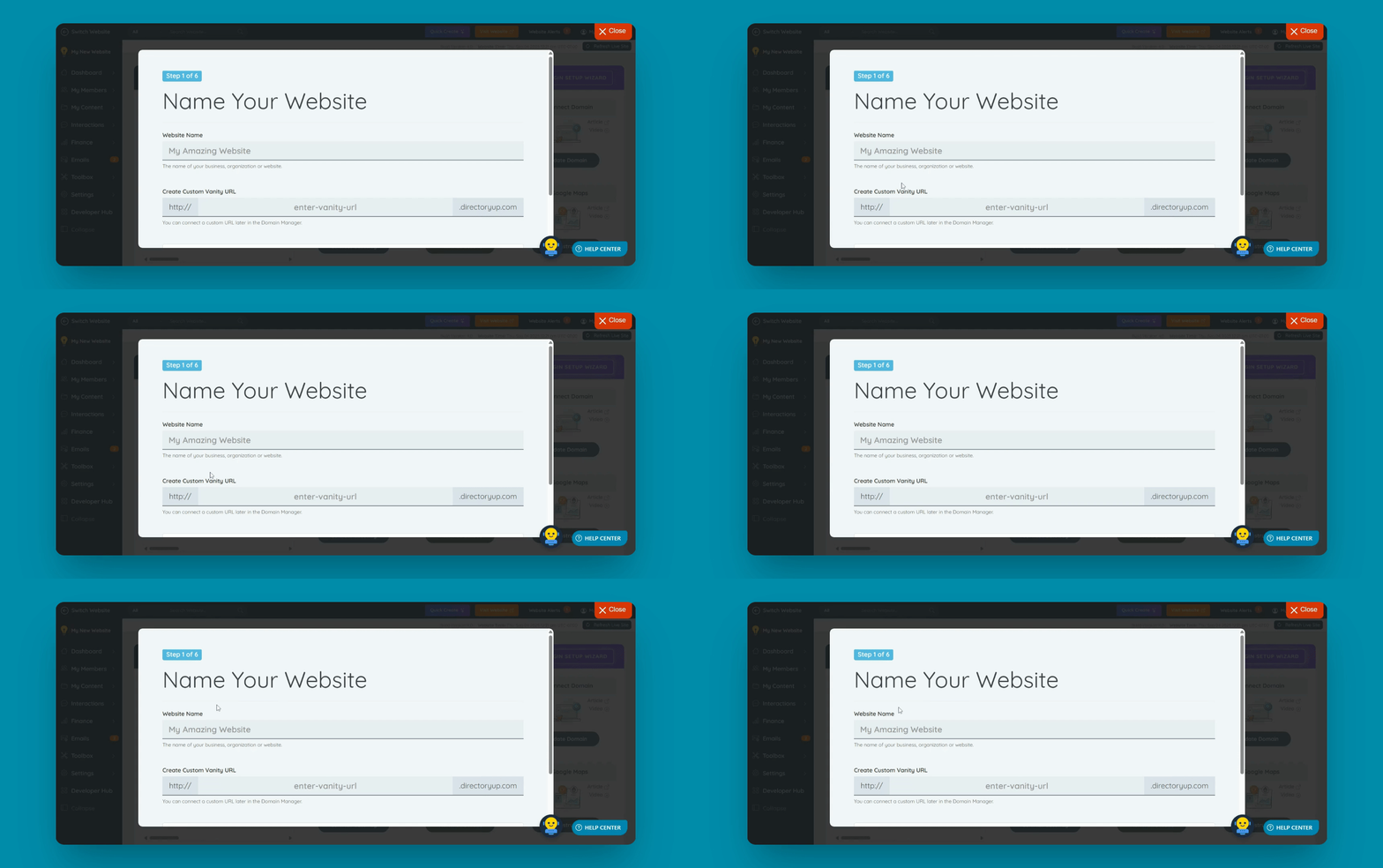
Step 2: Name Your Website

  1. Name your website (e.g., Demo Directory).

  2. Remember, it can be changed later.

  3. This will create a custom vanity URL using directoryup.com.

Your website will have a custom URL ready for further setup.
Snapshot

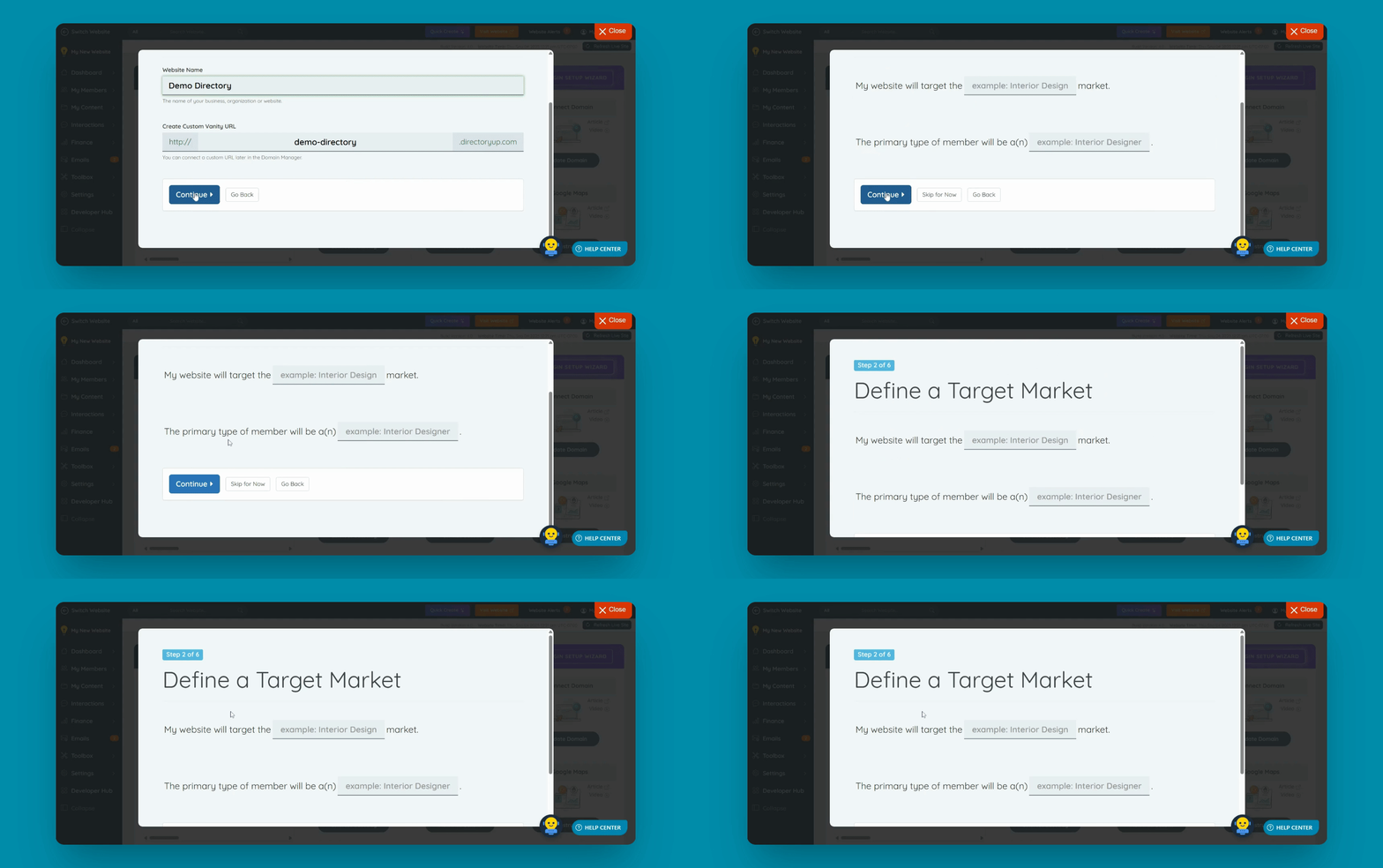
Step 3: Define Target Market

  1. Define your initial target market (e.g., entrepreneur).

  2. This sets your industry and profession name for the directory.

Your target market is now defined for your directory.
Snapshot

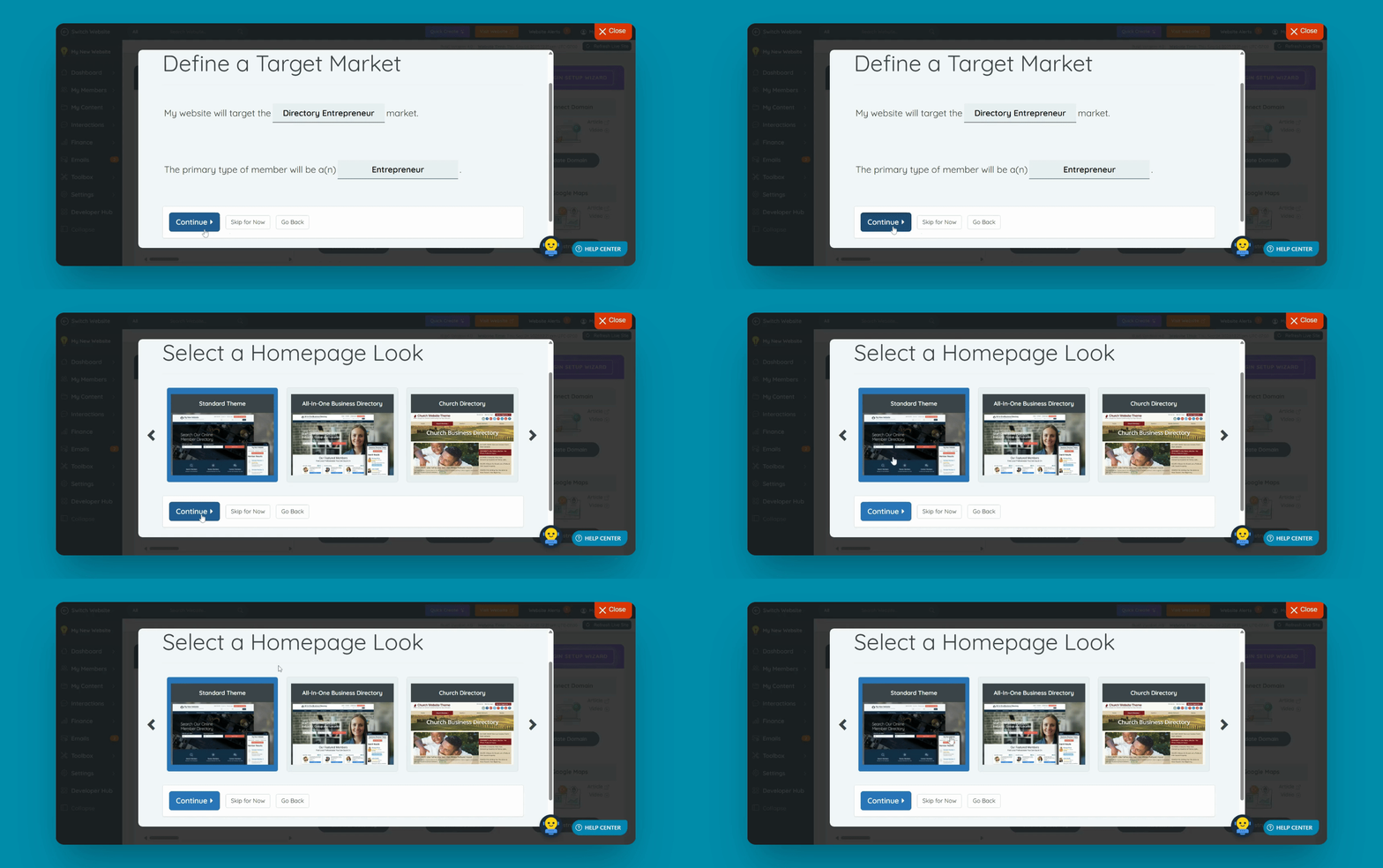
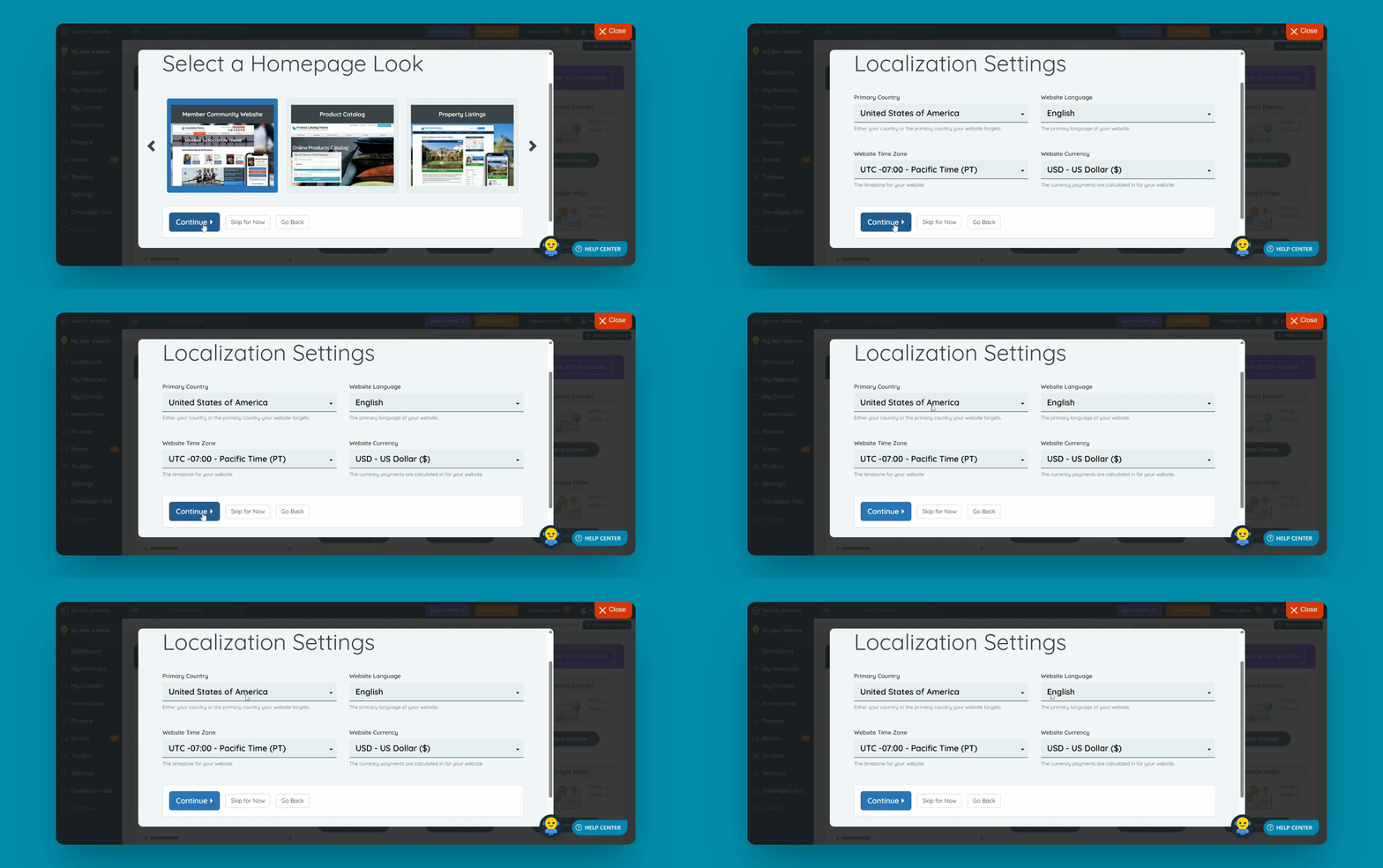
Step 4: Choose Homepage Look

  1. Select an initial homepage look (e.g., member Community website).

  2. Choosing this can be adjusted later based on your needs.

Your homepage look is set for your directory.
Snapshot

Step 5: Set Website Details

  1. Select your primary country, website language, time zone, and currency.

  2. Leaving everything as default is okay for now.

Your website details are configured.
Snapshot

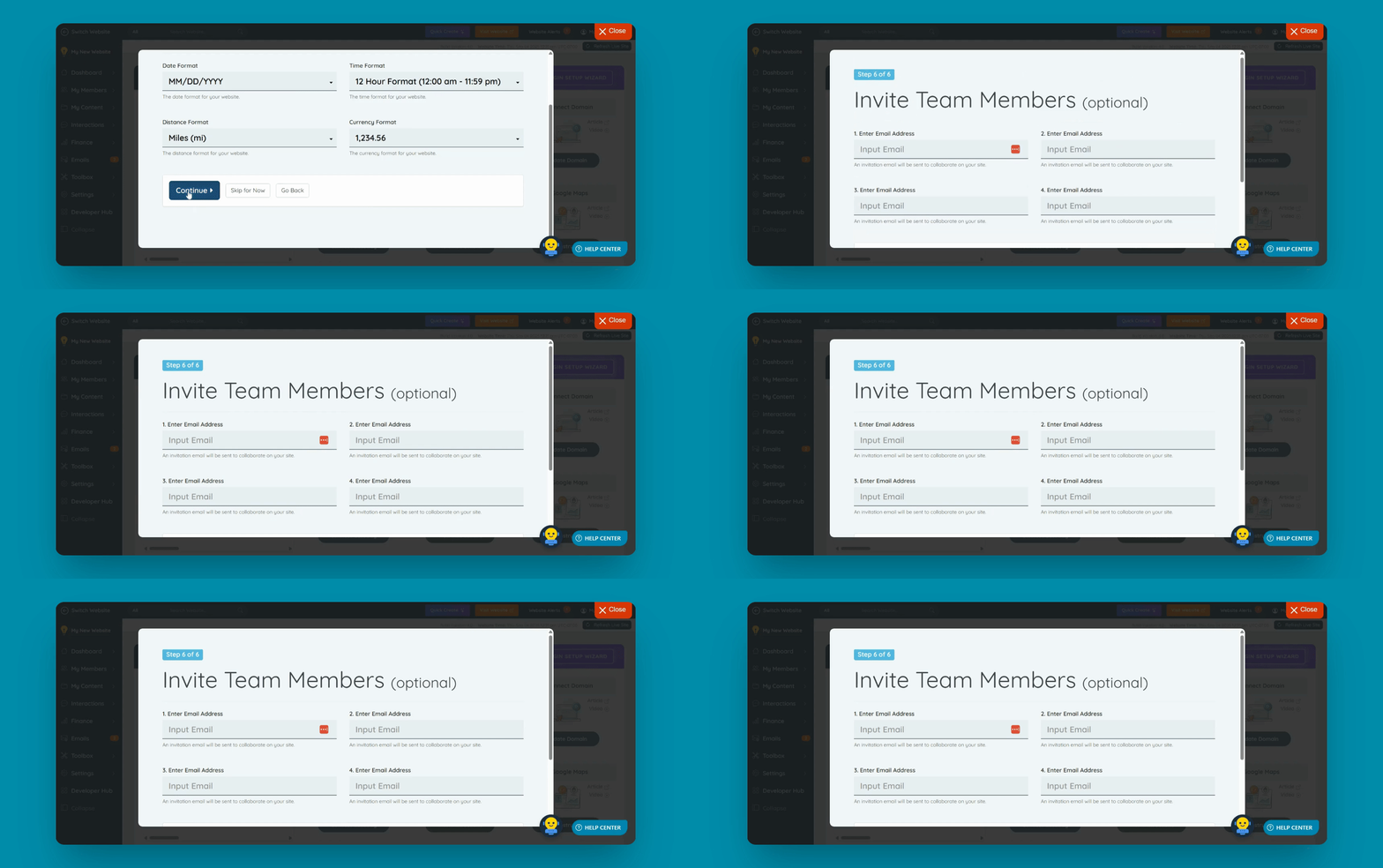
Step 6: Complete Setup

  1. Invite team members (optional).

  2. Click the Complete Setup wizard button.

Your directory setup is now complete and ready for launch.
Snapshot

Was this page helpful?

Dashboard

Next

Powered by DirectoryToolkit